
AI for Excel
An Excel AI assistant that works in the workbook.
Open Griddy from Excel, describe the result you need, and let it make the spreadsheet changes where your work already lives—formulas, cleanup, charts, PivotTables, formatting, and multi-sheet edits.
Griddy runs from an Excel add-in and requires an internet connection. You stay responsible for reviewing formulas, source data, and business assumptions.
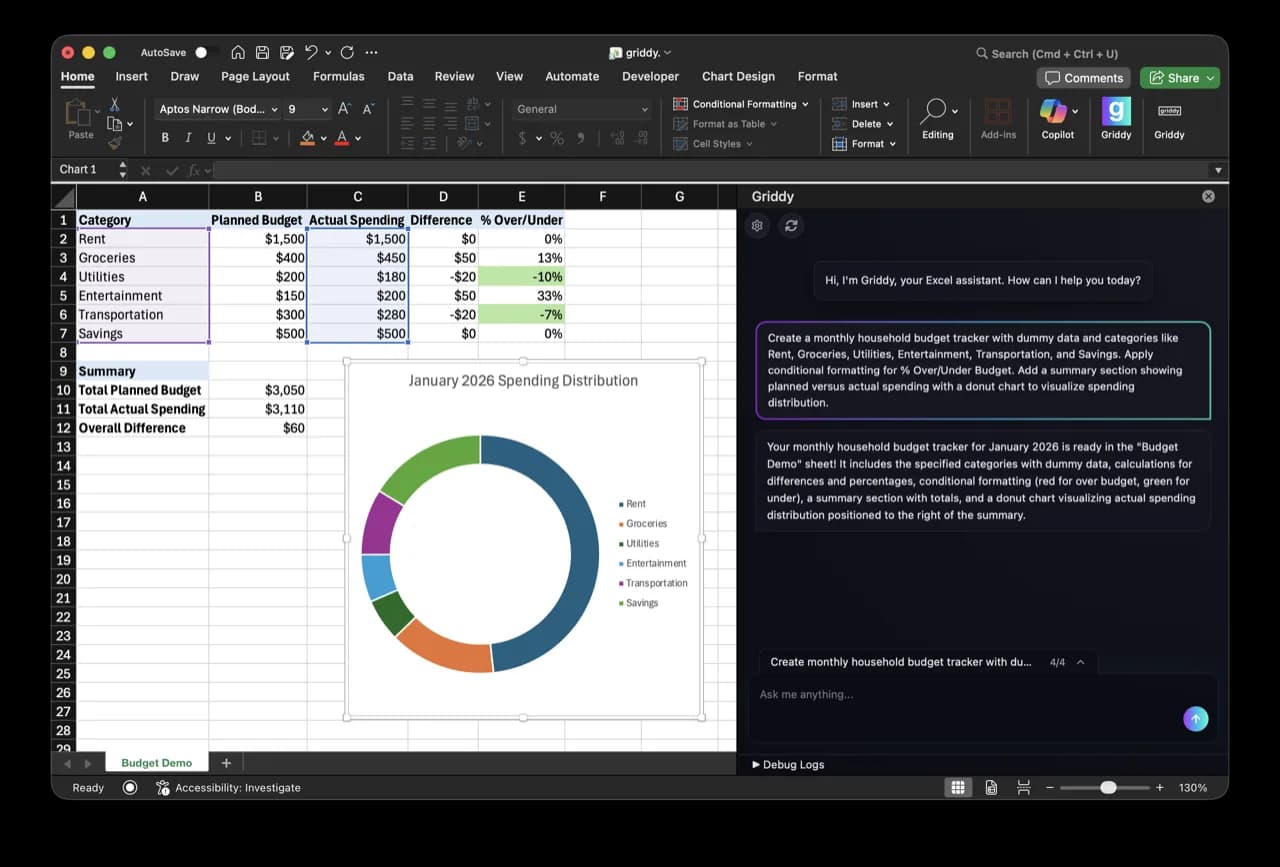
Concrete Excel prompt
“Create a monthly household budget tracker with planned and actual spending, a summary section, conditional formatting for over and under budget, and a doughnut chart.”
This request names the workbook deliverable, the calculations, the formatting rule, and the chart. That gives the assistant enough structure to produce an editable result instead of a generic explanation.
Expected output
- A category table with planned and actual amounts plus formula-driven differences and percentages.
- A separate summary block whose totals reference the budget table instead of repeating hard-coded numbers.
- Conditional formatting that makes over- and under-budget rows visible during review.
- An Excel chart connected to the underlying budget data.
Expected output describes the visible deliverable. Always inspect the formulas and chart source range before using the workbook for a decision.
Workflow
From request to workbook.
- 01
Open the Griddy add-in
Install Griddy from Microsoft AppSource, open the add-in from Excel, then sign in. The assistant appears beside the workbook rather than in a separate chat tab.
- 02
Name the sheet and scope
Select the relevant cells or identify the sheet and range in the prompt. Include the calculation rule, output location, and any cells or tabs that should remain unchanged.
- 03
Watch the workbook change
Griddy can read workbook context and apply supported Excel edits, including formulas, formatting, charts, PivotTables, and structured table changes.
- 04
Review, undo, or refine
Check formulas, totals, source ranges, and formats. If the result misses the intent, undo it and follow up with a narrower instruction rather than accepting an unclear output.
Excel tasks
One assistant, several kinds of spreadsheet work.
The best Excel AI requests point to a visible deliverable. Start with a bounded task, verify the result, then build on it.
Write and repair formulas
Ask for formulas across a range, cross-sheet references, lookups, ratios, forecasts, or guarded calculations while preserving the cells that should not change.
Learn more 02Clean imported data
Split text into columns, remove duplicate rows, trim whitespace, standardize values, convert formats, and reshape a raw export into a usable table.
Learn more 03Build reports and models
Create PivotTables and charts from source ranges, or connect assumptions to forecast and ratio tabs for a reviewable financial model.
Learn moreReview before you rely
AI speeds up the mechanics. You still own the model.
Griddy can make real workbook edits, which is useful precisely because the output is concrete. Treat that output the way you would treat work from another analyst: inspect it before relying on it.
- Check that formulas reference the intended sheets, columns, absolute cells, and date windows.
- Confirm that cleanup rules did not remove a legitimate row or convert an identifier into a number.
- Verify chart and PivotTable source ranges, aggregation choices, filters, and refresh behavior.
- For financial, legal, medical, or other sensitive decisions, validate the source data and assumptions independently.
Keep going
Related spreadsheet resources
FAQ
Before you start.
What is an Excel AI assistant?
An Excel AI assistant turns a plain-English request into spreadsheet work. Griddy operates from an Excel add-in and can apply supported edits in the workbook, such as formulas, formatting, cleanup actions, charts, PivotTables, and table changes.
Does Griddy only give instructions, or does it edit Excel?
Griddy can make changes in the workbook. The exact result depends on the request, workbook structure, and supported Excel operation, so you should review the edited cells and any created objects after each task.
What should I include in an Excel AI prompt?
Name the source sheet or range, the business rule, the output location, and anything that must remain unchanged. A request like 'add formulas' is weaker than one that names the source columns, target cells, number format, and edge-case behavior.
Can Griddy build an Excel workbook from a blank sheet?
Yes, Griddy can help build spreadsheet structure, formulas, formatting, summaries, and charts from a clear prompt. For higher-stakes work, provide verified inputs and review every assumption and calculation before relying on the result.
Give Excel a clear instruction.
Install Griddy, open a workbook, and start with one task whose output you can inspect.