Griddy pricing
Free to start; current Pro and Teams terms are on Griddy’s pricing page.
See current Griddy pricing
Griddy vs Copilot in Excel
Do this with AI
Start in Griddy’s browser spreadsheet and describe what you need.
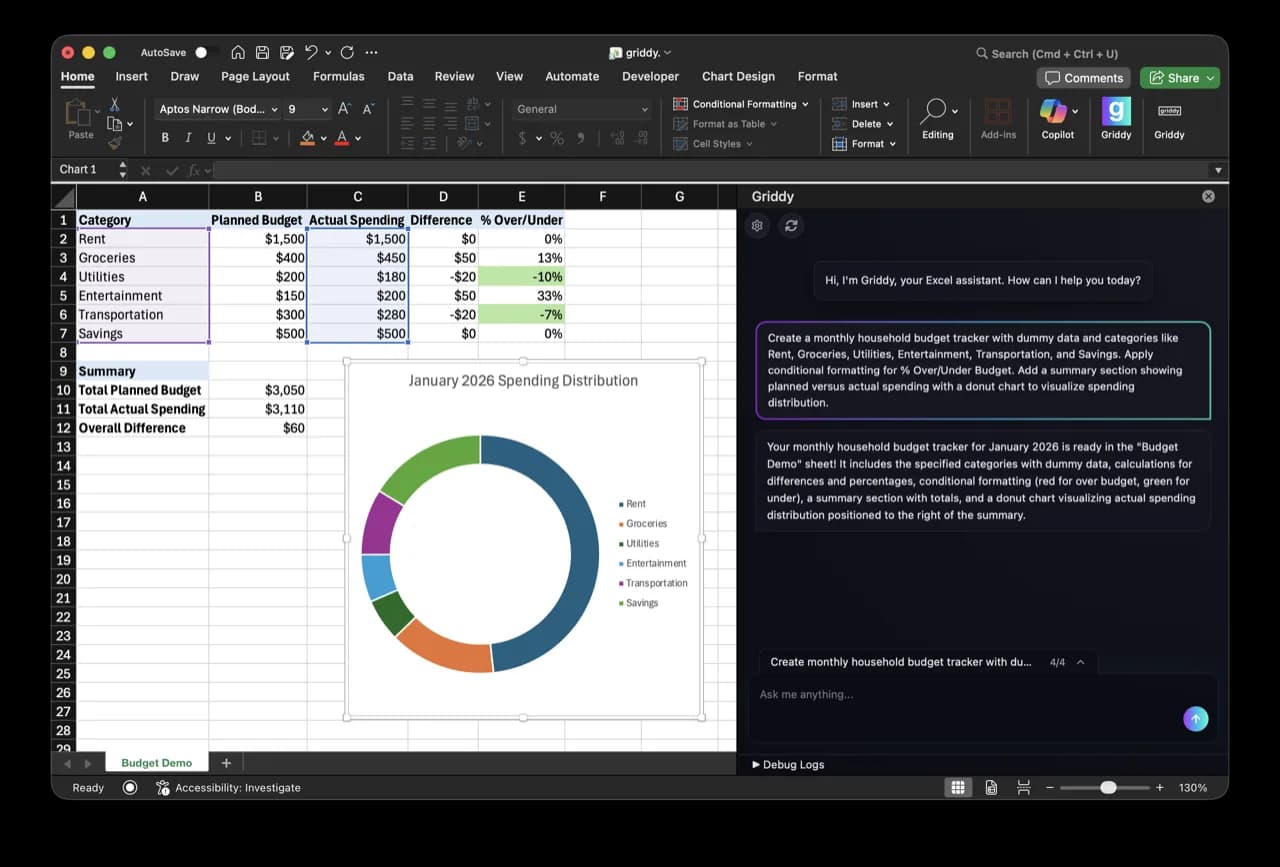
Both can edit workbooks. The practical choice is whether you want a dedicated spreadsheet assistant that also works in Sheets and the browser, or Microsoft’s integrated Copilot experience inside the Microsoft 365 ecosystem.
Sources[1][2]Reviewed August 19, 2026. Product access and features change; every material competitor claim links to a checked first-party source.
Short answer
Griddy pricing
Free to start; current Pro and Teams terms are on Griddy’s pricing page.
See current Griddy pricingMicrosoft Copilot in Excel pricing
Eligibility varies across personal, premium, commercial, and business subscriptions; check Microsoft’s current Copilot in Excel FAQ for the account and organization.
Sources[1]Current comparison
Factual product details are tied to current first-party documentation. This does not claim that one model always produces a better answer.
Microsoft Excel, Google Sheets, and Griddy’s browser spreadsheet
Microsoft Excel, Google Sheets, and Griddy’s browser spreadsheet
Install the Excel add-in or Sheets add-on, then open the Griddy sidebar
Reads workbook context and applies supported spreadsheet edits
Edit mode plans, runs, and reviews changes directly in the workbook
Sources[2]Formulas, cleanup, formatting, charts, pivots, tables, and multi-sheet work
Formulas, formatting, charts, PivotTables, worksheet edits, and data transformation
Sources[2]Scope the request by naming target and protected ranges; review the applied edits
Available as a Google Workspace Marketplace add-on
Copilot in Excel is an Excel product, not a Google Sheets add-on
Sources[2]Free to start; current Pro and Teams terms are on Griddy’s pricing page
Eligibility varies across personal, premium, commercial, and business subscriptions
Sources[1]Honest tradeoffs
Pros
Consider
Choose Griddy when
Choose Microsoft Copilot in Excel when
A fair way to decide
Trial task
“Clean this table, add the formulas needed for a useful summary, and build one editable chart. Do not change the source columns.”
Judge the finished workbook: is it correct, editable, easy to inspect, and easy to keep changing? AI outputs vary, so repeat the task if model consistency matters to you.
FAQ
It can be an alternative for spreadsheet-focused work, especially if you also use Google Sheets or Griddy’s browser spreadsheet. Copilot may be a better fit when your organization wants the broader Microsoft 365 ecosystem and already has eligible access.
Sources[1]Yes. Griddy applies supported spreadsheet edits through its add-in. Microsoft documents Copilot in Excel edit mode as planning, running, and reviewing changes directly in the workbook.
Sources[2]Not universally. Microsoft currently documents several eligible personal, premium, commercial, business, and enterprise paths. Access can also depend on organization settings, so check Microsoft’s current Copilot in Excel FAQ for your account.
Sources[1]First-party sources
Keep comparing
Griddy vs ChatGPT
People who already use ChatGPT broadly and want its assistant in Excel or Google Sheets.
Griddy vs Claude
Spreadsheet-heavy professionals who want cited analysis and model work directly in Excel.
Griddy vs Gemini in Google Sheets
Google Workspace users who want Google’s own AI and Drive or Gmail context inside Sheets.
Buying guide
Best AI spreadsheet tools by workflow
Do this with AI
Start free in your browser. Ask for one useful change, inspect the result, and decide whether the workflow feels easier.